Use GPT-6.1 Sol in Codex: setup and missing-model checks
Select GPT-6.1 Sol in Codex, configure the CLI, distinguish ChatGPT sign-in from API billing, and diagnose missing models, overrides, and permissions.
 Ofox
Ofox 
To use GPT‑6.1 Sol in Codex, select it in an eligible client’s model control or launch the CLI with codex --model gpt-6.1-sol. If it does not appear or the request is rejected, changing a configuration string is not enough: availability depends on your account, sign-in method, client and workspace controls.
This guide covers the documented setup and a read-only verification task. It was checked on September 30, 2026 against the official Codex models, configuration, authentication, and pricing documentation. We have not run a paid task on a reader’s account or verified every plan’s rollout. The screenshot below is public model documentation, not evidence of private account eligibility.
First choose the right sign-in and surface
| Route | What controls access | How usage is accounted for |
|---|---|---|
| Codex with ChatGPT sign-in | Plan, rollout, client and workspace settings | Included plan usage and applicable credits/limits |
| Local Codex with an API key | API project, model access and billing settings | Separate Platform API usage |
| Codex cloud | ChatGPT sign-in and supported workspace capabilities | Applicable product plan and usage rules |
| Ordinary ChatGPT Chat | A different model surface | Do not assume the Work/Codex rollout applies here |
The official launch rollout includes Plus, Pro, Business, Enterprise and Edu for the specified Codex and Work surfaces. Free and Go are not included in the Sol launch availability. Enterprise and Edu keep the model disabled by default until an administrator enables it. These are eligibility rules, not a guarantee that every signed-in session has already refreshed its model list.
The current documentation places GPT‑6.1 Sol in Work and Codex, not ordinary Chat. If you are searching the regular Chat model picker, first switch to the supported product surface. Do not buy additional API credits simply because you cannot see a model in ChatGPT; first identify which authentication and billing system your task uses.
Select the model in the application
In the supported desktop Work/Codex interface, use the model and reasoning control beneath the composer. Choose GPT‑6.1 Sol if it is listed for your account. Start a new, small task and verify the selected model in the task’s control or status display. A different open task may retain its own selection, so inspect the task you are actually about to run.
Use the default reasoning setting initially. Increase effort when a specific task’s acceptance criteria justify the added time and token use. Product labels such as Light or Ultra are UI choices, not API parameter strings. Do not copy ultra into a raw reasoning.effort field: Sol’s documented API options are low, medium, high, xhigh, and max.
Standard and Fast are included in the documented launch modes; Sol Ultrafast support is described as coming later. Controls can differ by account and client. A screenshot or instruction for one interface should not be treated as proof that the same button exists in every other surface.
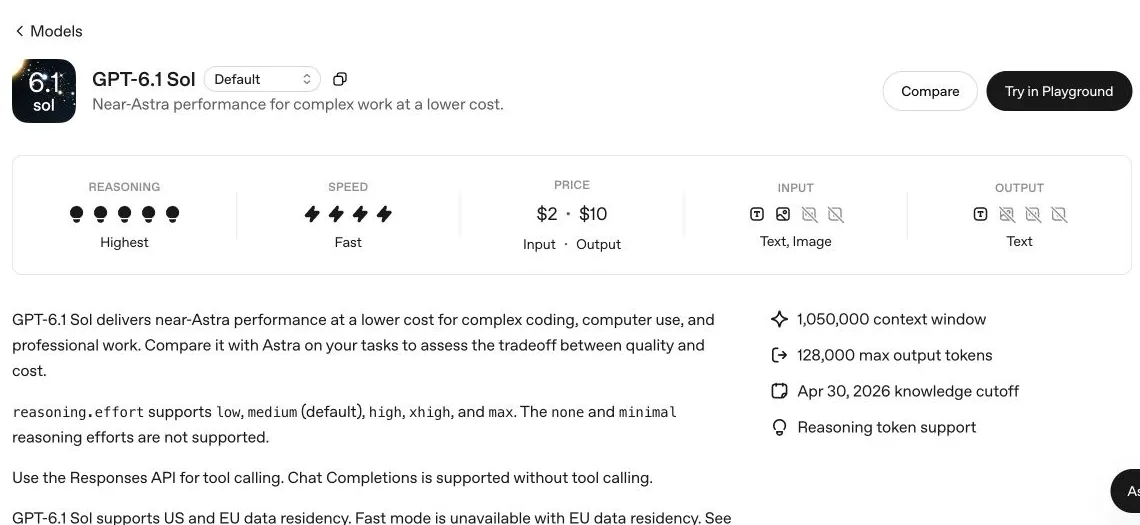
Real screenshot of the English OpenAI model page, used to verify the exact model and API reasoning values. It is not a screenshot of a private Codex model picker. Browser access to the separate product-documentation screenshot destination was unavailable during preparation.
Configure the CLI without changing permissions
If Codex is already installed, inspect the version and available help first:
codex --version
codex --help
If it is missing or outdated, use the installation or update procedure in the official CLI guide for your environment. Do not combine a model change with an unreviewed installer or a third-party package that happens to have a similar name. After updating, launch a fresh session so that you are checking the current client rather than an old running process.
Select the model for a single launch:
codex --model gpt-6.1-solWithin an interactive CLI session, /model is the documented control for changing model and reasoning effort. The non-interactive equivalent can select a model with -m:
codex exec -m gpt-6.1-sol "Review the current changes. Do not edit files."The exec example submits model work immediately; an interactive launch starts a session, with model work beginning when you submit a task. Model work consumes usage under your chosen authentication. These are documented examples, not commands executed for this article. Run them in a disposable or appropriate test project, and review the tool permissions shown by your client. Selecting a model does not grant repository, network, plugin or workspace access.
For a persistent personal default, add the following entries to your existing ~/.codex/config.toml:
model = "gpt-6.1-sol"
model_reasoning_effort = "medium"
Update the existing top-level keys if they are already present; do not append duplicate keys or place them inside an unrelated TOML table. Preserve unrelated provider settings, project trust and approval rules. Keep API keys out of configuration snippets you commit or share. This setup uses the standard model selection and does not require disabling a sandbox, changing approval policy or expanding permissions.
Understand why your saved default may not win
Codex supports several configuration layers. A launch flag, an active profile, or a trusted project’s .codex/config.toml can affect the effective settings. The closest applicable project configuration can differ from the user-level default. Project configuration is only loaded under the documented trust conditions; a file’s existence alone does not prove it is active.
If the task still selects another model, inspect the command used to start it, the selected profile, and the relevant project configuration before editing the personal file again. Follow the current configuration precedence documentation for the exact client. Do not remove configuration files blindly or print their full contents into a support ticket: they may include private endpoints or other sensitive settings.
A third-party provider adds another layer. The name it expects, supported protocol and availability may differ from OpenAI’s native API. This article’s gpt-6.1-sol examples refer to the documented OpenAI model. They do not establish that every gateway or a saved custom-provider profile can route the same name.
Verify with a small, checkable task
Use a public sample or disposable project with a README and known tests. A useful first prompt is:
Read README.md and the test configuration. Do not modify files.
Report:
1. The project's purpose, with the file that supports your answer.
2. The documented command for running tests.
3. Any mismatch between the README and test configuration.
If you cannot access a file or tool, say which one and stop that step.
Do not claim to have run a command unless you actually ran it.
Check the selected model in the client, the files actually read, and the answer’s correspondence to those files. This verifies a small workflow, not overall coding ability. If you also allow a test command, inspect its actual terminal result; a sentence saying “tests passed” is not equivalent to an exit code and output.
Record the client version, sign-in route, workspace, selected model, reasoning control and result. Avoid recording keys or private source content unnecessarily. If the task is blocked on a tool permission, classify that separately from model availability. A model that starts successfully but cannot read an unauthorized directory has a different problem from a model-access rejection before inference begins.
Diagnose missing models and failed requests
| Symptom | Likely area to inspect | Next step |
|---|---|---|
| Sol absent in ordinary Chat | Wrong surface | Use an eligible Work/Codex surface |
| Sol absent on Free or Go | Launch eligibility | Check an eligible plan’s documented access; do not assume a UI refresh changes eligibility |
| Enterprise/Edu model absent | Workspace model control | Ask the administrator to check whether it is enabled |
| Eligible account, stale list | Client version or rollout | Update through the official channel, restart, then verify the same account/workspace |
| Config says Sol, task uses another model | Flags, profile, project or task selection | Inspect effective configuration and the active task |
| API model access error | API project/model permission | Verify the exact ID and project access; a subscription alone is not proof |
| Authentication failure | Sign-in route or key | Reauthenticate through the documented flow; do not expose credentials |
| Usage limit reached | Plan window or API quota/billing | Inspect the limit in the system actually paying for the task |
| Tool permission denial after model starts | Sandbox/workspace/tool policy | Resolve only the required permission through normal controls |
Avoid switching accounts, buying credits or weakening permissions before identifying the layer. If an official-client update and the correct workspace still do not expose the model, preserve the client version, timestamp and redacted error/request ID for support. A configuration workaround cannot legitimately grant access the account does not have.
Keep API dollars separate from product credits
OpenAI’s model-page token prices apply to the API. ChatGPT-sign-in usage is governed by the product plan and applicable credit system. An API-key task is billed separately from included ChatGPT usage; it is not a way to spend a subscription’s included quota through arbitrary API calls.
Product rate-card credits are not dollar amounts. Nor does one task have a fixed token cost: tool loops, longer context and reasoning can change consumption. Do not divide a monthly subscription price by a single API token rate to claim a guaranteed number of included tasks. Check your actual usage window and current plan documentation.
For raw API budgeting, use the Sol pricing guide. For custom applications whose function calls fail after a model change, use the Responses migration tutorial; changing the Codex picker does not repair an unrelated application’s endpoint. Once access is working, the Sol-versus-Astra guide helps define a task-based evaluation before making Sol your default for broader work.