Cline VS Code AI Plugin: Complete API Configuration Guide with OfoxAI
Configure Cline (formerly Claude Dev) in VS Code with a custom API — OpenAI Compatible and Anthropic Provider methods, model selection, troubleshooting.
 Ofox
Ofox 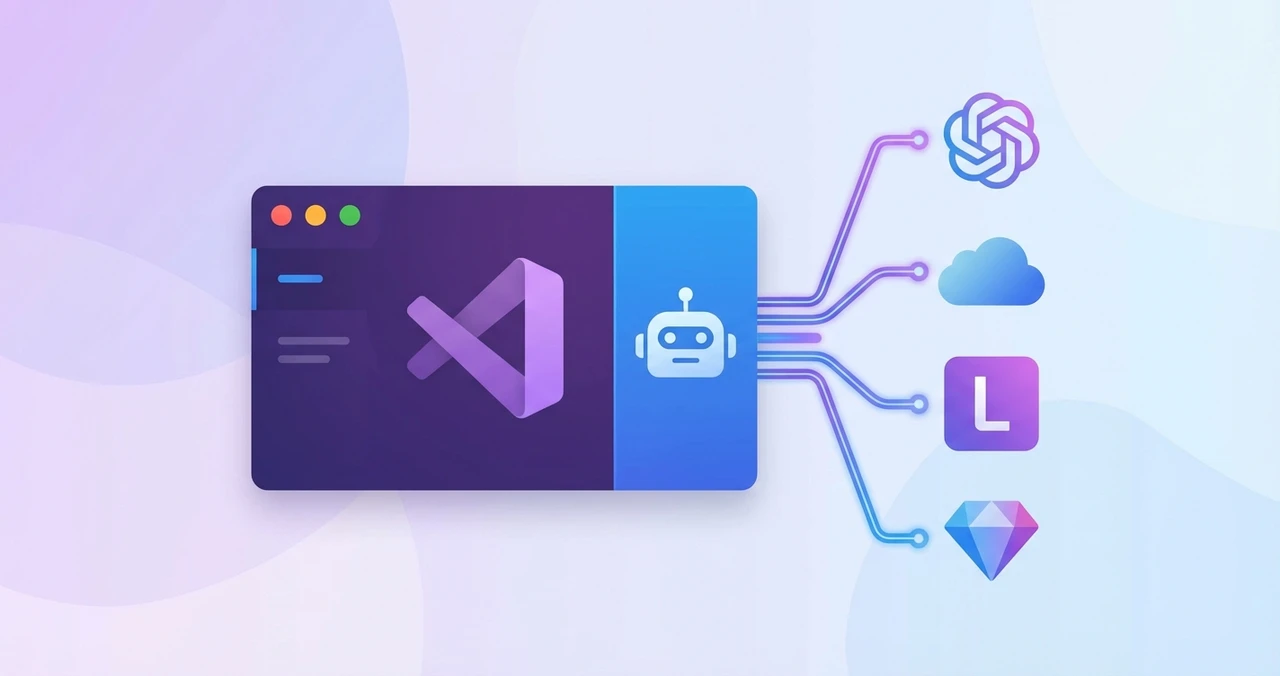
What This Guide Covers
Cline (formerly Claude Dev) is a popular VS Code AI coding extension. It reads your project files, suggests code changes, runs terminal commands, and uses tools to interact with your development environment. With OfoxAI, you can use multiple models through a single API key.
This guide walks through two configuration methods: OpenAI Compatible (requires a compatible model and route) and Anthropic Provider (for a compatible Messages route).
For official documentation, see the OfoxAI Cline integration guide.
The official Cline OpenAI-compatible guide identifies the provider’s Base URL, API key and model ID as separate settings. For a broader protocol comparison, see custom endpoints by tool. A configuration flag cannot add a missing model capability.
Why Configure a Custom API Provider for Cline
One API key for all models. Instead of maintaining separate accounts with Anthropic, OpenAI, and Google, you configure one endpoint and one key. Cline can then access Claude, GPT, Gemini, and dozens of other models.
Switch models without reconfiguring. Testing whether GPT-4o handles a refactoring task better than Claude Sonnet? Change the model ID in Cline’s settings. No need to swap API keys or switch provider configurations.
Unified usage tracking. All token consumption across all models appears in one dashboard with one balance.
Installing Cline
- Open VS Code
- Go to the Extensions panel (
Cmd+Shift+Xon macOS,Ctrl+Shift+Xon Windows/Linux) - Search for Cline in the marketplace
- Click Install
After installation, you will see the Cline icon in the VS Code sidebar. Click it to open the Cline panel.
Method 1: OpenAI Compatible Provider
The OpenAI Compatible method is the most universal option. It supports compatible models beyond OpenAI; verify the route’s protocol and tool interactions.
Step 1: Open Provider Settings
In the Cline sidebar panel, click the settings icon.
Step 2: Select OpenAI Compatible
Under API Provider, select OpenAI Compatible.
Step 3: Enter Connection Details
| Setting | Value |
|---|---|
| Base URL | https://api.ofox.run/v1 |
| API Key | Your OfoxAI API Key |
| Model ID | anthropic/claude-sonnet-4.6 |
Use the exact model ID published by your provider. The prefixes in this gateway example are not required by Cline for every provider.
Step 4: Verify
Send a test message in the Cline chat panel. A text reply confirms basic connectivity. Verify a tool-call round trip in a scratch workspace before relying on agent tasks.
Method 2: Anthropic Provider (Recommended)
For an Anthropic-compatible Messages endpoint, select the Anthropic provider. Verify that the selected route supports the model, tool requests and follow-up tool results. Using the native message format does not establish support for every Anthropic feature.
Step 1: Select Anthropic as the Provider
In the Cline provider settings, under API Provider, select Anthropic.
Step 2: Enter Connection Details
| Setting | Value |
|---|---|
| API Provider | Anthropic |
| Base URL | https://api.ofox.run/anthropic |
| API Key | Your OfoxAI API Key |
| Model | anthropic/claude-sonnet-4.6 |
Note the different Base URL compared to Method 1. The /anthropic endpoint speaks the native Anthropic API protocol, not the OpenAI-compatible format.
Step 3: Verify Tool Use
To confirm that Tool Use is working, ask Cline to perform an action that requires tool interaction:
- “List the files in my current project directory”
- “Read the contents of package.json”
If Cline executes these actions (with your approval), Tool Use is functioning correctly. If it only responds with text descriptions instead of actually performing the actions, double-check that you selected the Anthropic provider and used the /anthropic base URL.
Recommended Models
| Scenario | Model | Description |
|---|---|---|
| Daily coding | anthropic/claude-sonnet-4.6 | Balanced coding performance |
| Complex refactoring | anthropic/claude-opus-4.6 | Deep understanding and reasoning |
| Quick Q&A | openai/gpt-4o-mini | Fast responses |
| Long file analysis | google/gemini-3.1-flash-lite-preview | Large context window |
To switch models, change the Model ID in the provider settings. You do not need to change the Base URL or API key.
Configuration Comparison
| Aspect | OpenAI Compatible | Anthropic Provider |
|---|---|---|
| Base URL | https://api.ofox.run/v1 | https://api.ofox.run/anthropic |
| Supported models | All models (Claude, GPT, Gemini, etc.) | Claude models |
| Tool Use support | Partial | Full |
| Best for | Multi-model workflows | Claude-focused workflows with agent features |
For most users, the practical recommendation is: use the Anthropic Provider method as your primary configuration for Claude models with full agent capabilities, and set up the OpenAI Compatible method as a secondary option when you want to use non-Claude models.
Troubleshooting
Model not supported error
Copy the model ID from the selected provider’s current catalog; do not add or remove a prefix based on a different platform’s example.
Tool Use feature not working
Check that the selected route supports tools and that the provider setting matches its protocol. For the documented Anthropic route, use https://api.ofox.run/anthropic with Anthropic, then verify an actual tool interaction.
Authentication errors (401 or 403)
Verify your API key is correct and has not expired. Check that you copied the full key without trailing spaces.
Slow responses
Response time depends on the model. Claude Opus is slower than Sonnet by nature since it performs more reasoning. For faster responses on simple tasks, switch to openai/gpt-4o-mini or google/gemini-3.1-flash-lite-preview.
Summary
Cline transforms VS Code into an AI-powered coding environment with agent capabilities. The Anthropic Provider method (https://api.ofox.run/anthropic) is an option for Claude models on a compatible Messages route; verify tool support before relying on it. The OpenAI Compatible method (https://api.ofox.run/v1) serves as a versatile alternative when you need to use non-Claude models.
For the complete integration documentation, visit the OfoxAI Cline integration guide.
Frequently Asked Questions
- Why does Cline say 'model not found' when I enter a model name?
- Copy the exact ID from your selected provider. A prefix such as anthropic/ is a gateway naming convention, not a universal Cline requirement.
- Which provider setting should I use for Claude tool calls?
- Select the protocol supported by your model and endpoint. For an Anthropic-compatible route, use the Anthropic provider and its documented base URL; then verify a tool-call round trip. Native format alone does not guarantee every gateway feature.
- Can I switch between the OpenAI Compatible and Anthropic Provider methods without losing my settings?
- Yes. Cline stores provider configurations independently. You can set up both methods and switch between them from the provider dropdown.
- Does Cline work with models other than Claude?
- Yes. Through the OpenAI Compatible provider, Cline can connect to compatible models on the selected endpoint, including GPT-4o, Gemini, and others. The Anthropic Provider method is specific to Claude models.